

Upload records guide
HOW IT WORKS
Garmin Connect
Connect Garmin Connect once, then let RQ import new running records.
Choose how to connect
Use either the RQ app or the website; you do not need to connect twice.
Using the RQ app
In RQ, tap the top-right More button (...) > Connect devices > GARMIN, then tap Connect Garmin now.
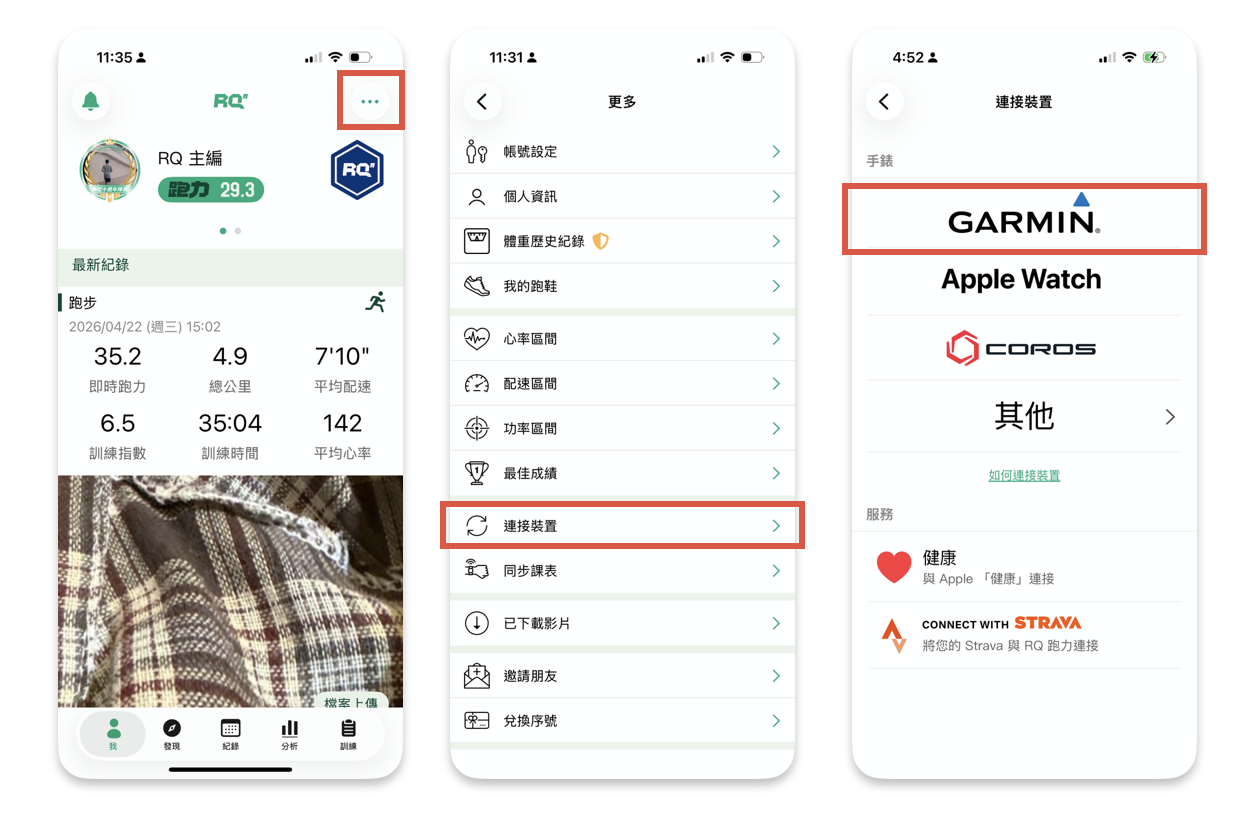
Using the RQ website
Open Upload records on the RQ website. Under Garmin Connect, select Start AutoSync (Global).
FOLLOW THESE STEPS
Complete the upload path
-
01
Sign in with the Garmin account that holds your runs.
First check that your runs appear in the Garmin Connect app. Use that same account when authorizing RQ; another Garmin account will not contain those runs.
-
02
Enable activity and historical data permissions.
On the Garmin permission screen, enable Activities, Daily health stats, and Historical data as shown in the manual. Historical data must be enabled to import past runs. Tap Save, then Agree.
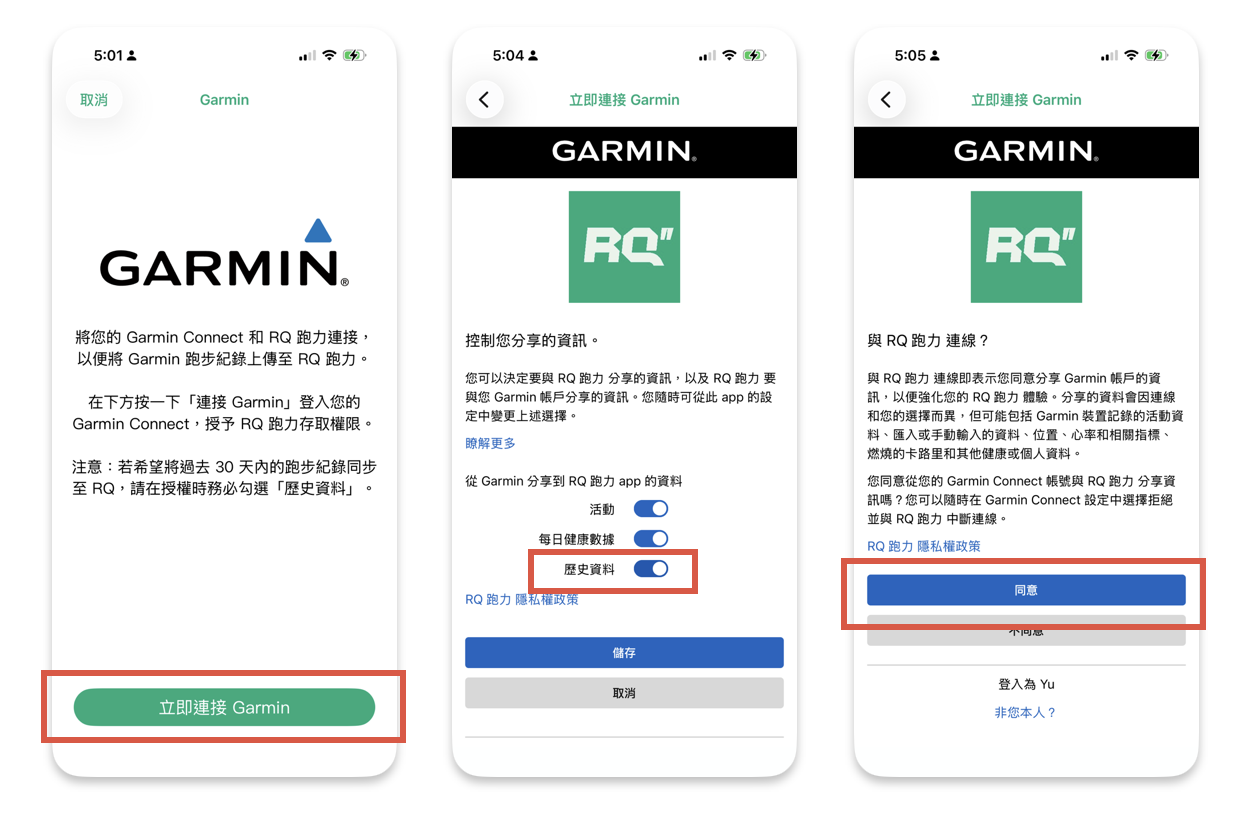
Screenshots from the RQ manual (Traditional Chinese). Tap to enlarge; labels may vary by app version. -
03
Confirm the connection and check for warnings.
Return to RQ. The app shows a check mark beside GARMIN; the website shows Enabled. If the website also reports an expired connection, remove that connection and authorize again.
-
04
Sync a new run to Garmin Connect.
Let your watch finish syncing the activity to Garmin Connect. RQ will then import the new running record.
Continue in RQ
The current upload page will show the available action for your account.